Colour, saturation, brightness
Turn the colour control, soften a vivid palette or dim the HUD for a long night in the black. The preview responds as you adjust.
HUD colours
Make the HUD yours with community themes, precise colour controls and a live cockpit preview. Keep the cues you fly by: hostile red, friendly green and shield blue.
Download for Windows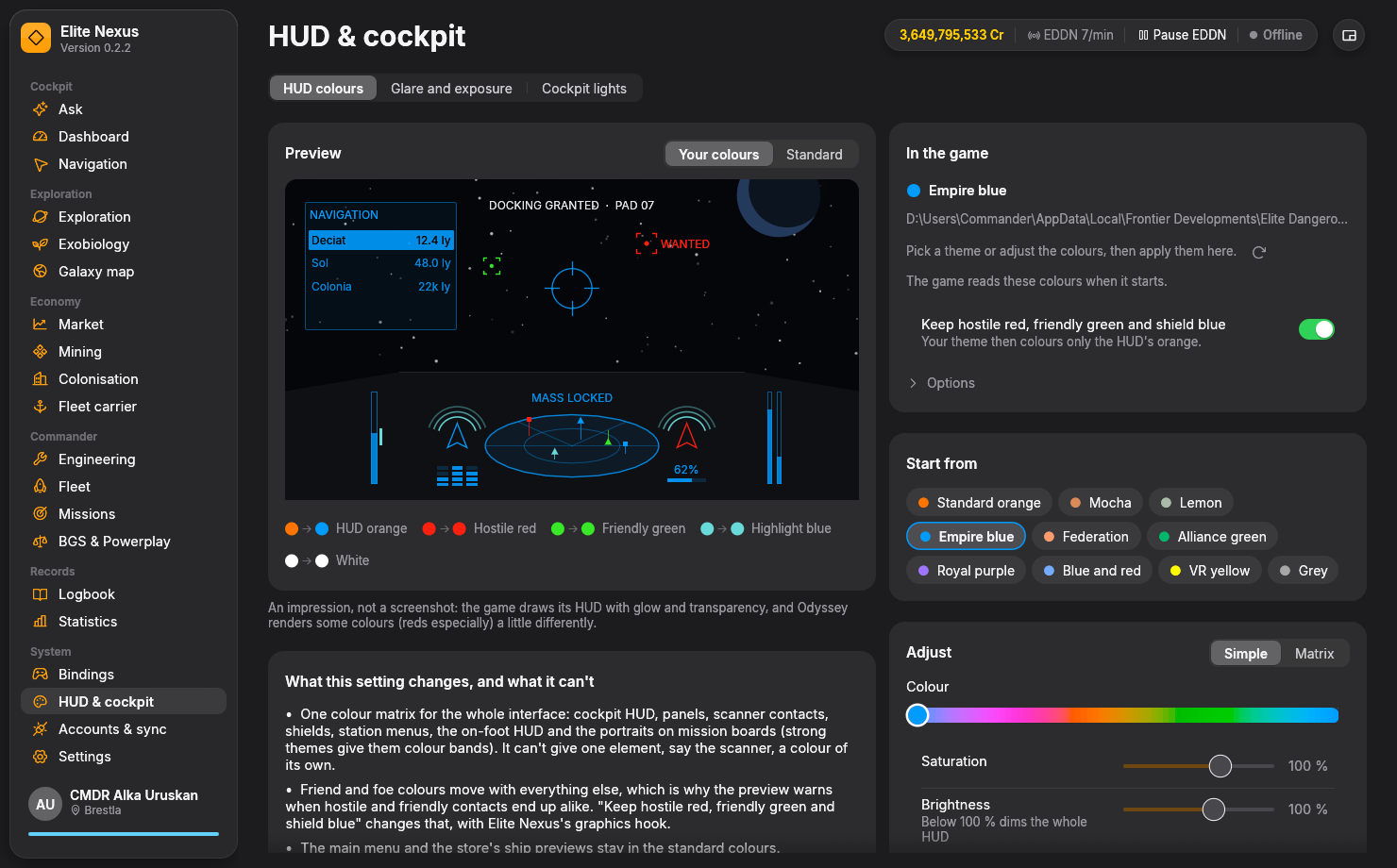
From a favourite to your own
Choose a credited community theme such as Mocha, Lemon or Empire blue, then make it feel right for your cockpit.
Turn the colour control, soften a vivid palette or dim the HUD for a long night in the black. The preview responds as you adjust.
Compare your theme with the standard HUD. Colour swatches reveal what happens to orange, red, green, blue and white; readability warnings flag similar friend-and-foe colours or a HUD that gets too dark.
Switch to Matrix to edit the nine values behind the theme. Bring an existing setup across exactly, or fine-tune a palette beyond the simple controls.
Keep the colours that mean something
The game normally shifts every interface colour together. Elite Nexus can apply your theme to the HUD’s orange while preserving the standard colours of contacts, shields and other highlights.
Install the optional graphics hook from Cockpit lights, then enable this switch in HUD colours. The preview and swatches update to show the protected colours.
The light dimmer can stay off: colour protection works independently. Advanced options let you refine which shades count as HUD orange.
Explore the shared graphics hookKnow your controls
It is an interactive illustration of the colour changes. The game adds glow, transparency and its own rendering, so the final appearance can differ. Check your theme in the game after restarting.
The game’s colour matrix affects the interface together, including station menus, the on-foot HUD and mission-board portraits. Elite Nexus can preserve the standard contact and highlight colours with its graphics hook, but it does not assign a separate custom colour to every element.
No. Presets, custom themes and brightness adjustments use the game’s own settings file. The optional hook is needed to preserve contact and highlight colours. It cannot run alongside EDHM or another 3Dmigoto mod; Nexus detects those installations. EDHM also expects the game’s matrix to remain standard orange.
HUD brightness, cockpit lighting and the way the scene is exposed are separate controls. Use Cockpit lights to dim the cabin lamps, and Glare and exposure to tune glare and dark tones.
Keep exploring
Ready when you are
Free and open source. Windows 10/11, 64-bit. Unzip and fly.